c3d-mcp lets an AI assistant build, light and render scenes inside Cheetah3D on your Mac, while you simply describe what you want in plain English.
How this all started
I have been a Cheetah3D user for many years. It has always been my go-to 3D app on the Mac: it is easy to use, it never gets in my way, and it produces great results.
Recently I kept seeing people get amazing results by connecting AI assistants to Blender through something called Blender MCP. I couldn’t help wishing that Cheetah3D could do the same.
I knew Cheetah3D can run JavaScript macros, but I had never really explored that feature. Honestly, I found it too difficult to use and understand. That changed with the help of AI. Once an AI could write and explain the scripts for me, a door opened, and c3d-mcp is what came through it.
What is MCP? It stands for Model Context Protocol: a standard way for AI apps (like Claude, Codex or Antigravity) to use other apps as tools. With c3d-mcp, Cheetah3D becomes a tool your AI can pick up and use.
What you get
| What you get | What it means for you | Example |
|---|---|---|
| Talk to Cheetah3D | Describe the scene in everyday words. The AI does the clicking, scripting and typing for you. | "Build a small dining table with a wood top and four legs." |
| Build scenes fast | Basic shapes, custom models, pipes, folders, even hundreds of objects at once. | "Add 140 paving stones, each slightly different." |
| Materials and textures | Wood, marble, glass, metal, glowing neon, and different materials on different parts of one object. | "Make the sphere polished chrome and the vase gold." |
| Lights, cameras and backgrounds | Studio-style lighting and framing, with automatic checks that the picture is not too dark or empty. | "Add a warm key light and a soft purple backdrop." |
| It looks at its own work | The AI renders a picture, studies it, and fixes its own mistakes. Optional finishing touches add glow, outlines and colour grading. | "Render it, tell me what looks wrong, then fix it." |
| Animation and export | Keyframe animation, image sequences, and export to common formats such as FBX, DAE, STL and USDZ. It can also fetch free models from Poly Haven. | "Spin the model slowly and export it as FBX." |
| Safe by design | Works in a fresh scratch document, never overwrites your files, takes automatic checkpoints you can roll back to, and asks before anything risky (you choose how often it asks). | "Undo that, go back to the checkpoint before the roof." |
| Easy to install | One download, one app with a control panel: it installs the bridge, connects your AI apps, handles permissions, updates itself and can remove everything again. Works with Claude, Codex and Antigravity (and others), and comes with "skills" that teach your AI how to get the best out of it. | See the five steps below. |
What you need
- A Mac with Apple Silicon and macOS 14 or newer. Nothing else to install: no Node.js, no Homebrew, no Terminal.
- Cheetah3D 8.1.3 (installed, and opened at least once). Get it from the official Cheetah3D website.
- An AI app that supports MCP, for example Claude Desktop, Claude Code, Codex or Antigravity.
Install in 5 easy steps
- Download the app. Get C3D-MCP-<version>.dmg from the latest release, open it and drag C3D MCP onto the Applications folder.
- Open it, and click "Open Anyway" once. macOS will say it cannot verify the app, because I sign it with my own certificate rather than a paid Apple Developer ID. Click Done, open System Settings › Privacy & Security, scroll down, click Open Anyway next to "C3D MCP" and type your password. Then open the app again. You only do this once per Mac.
- Install the bridge and restart Cheetah3D. In the app, open Bridge and click Install or update. Then quit and reopen Cheetah3D once so it notices the new bridge. The Overview page has a Setup list that ticks off each step, and it checks again by itself when Cheetah3D starts, so you can watch the items turn green.
- Connect your AI app. Open AI clients and click Connect next to Claude, Codex, Antigravity, Gemini or Cursor. Restart that AI app afterwards.
- Allow the app, then say hello to your AI. Open Permissions, click Grant… for Accessibility and switch on C3D MCP in System Settings. This is what lets the AI press Cheetah3D's menu for you. Then try: "Check that Cheetah3D is connected, then make a new scene with a red cube and render it."
Prefer one line in Terminal? This downloads the same app straight into Applications, checks its checksum, and macOS does not show the "Open Anyway" prompt for it: curl -fsSL https://github.com/megatih/c3d-mcp/releases/latest/download/get-c3d-mcp.sh | bash. Want to read it first? Good idea! It is a short script: download it with curl -fsSL https://github.com/megatih/c3d-mcp/releases/latest/download/get-c3d-mcp.sh -o get-c3d-mcp.sh, open it in any text editor, then run bash get-c3d-mcp.sh.
If something goes wrong: the install guide and the troubleshooting page cover the common problems, and the app's Overview runs a health check that tells you what to fix.
Tired of "May I?" prompts? In Permissions you choose how often c3d-mcp asks before risky actions (the default asks once per action, not every time), and one button tells Claude Code to stop asking before every tool call.
Update, repair or remove it later
Everything lives in the same app, so there is nothing to remember:
| You want to | What to do |
|---|---|
| Update | The app checks for new versions by itself. Overview › Updates › Check now does it on demand. Updates are signed, and the app only accepts an update with a valid signature. |
| Repair | Bridge › Repair fixes only what is missing or broken and leaves everything else alone. |
| Just look | Overview shows a Setup list and a health check of Cheetah3D, the bridge, the permissions and your AI apps, with a suggested fix for anything that is wrong. It checks again by itself when Cheetah3D starts or quits and when you come back to the window; Re-check runs the full check right now. |
| Clean up an older install | If you installed an earlier version with the old install script, npm, Homebrew, the Claude Desktop extension or the Claude Code plugin, open Cleanup. It finds those leftovers and removes them (they go to the Trash). Your bridge, skills and logs are kept, because every version shares them. Old entries in your AI apps are handled in AI clients: an entry that still points at an old install shows Connected to an older install, and Switch to this app repoints it (or Disconnect removes it). |
| Remove it | Bridge › Uninstall everything removes the bridge, the skills and the AI app entries. Your Cheetah3D scripts and backups are never touched. Then drag the app to the Trash. |
About permissions after an update: every version is signed with the same certificate, so macOS should keep your Accessibility permission. If it ever asks again, switch C3D MCP off and on in System Settings.
The app also installs a set of skills: short guidebooks that teach your AI how to use Cheetah3D well. They are the reason the AI knows, for example, which way rotation works in Cheetah3D, or how to check a render before moving on.
Benchmark 1: the Cornell Box
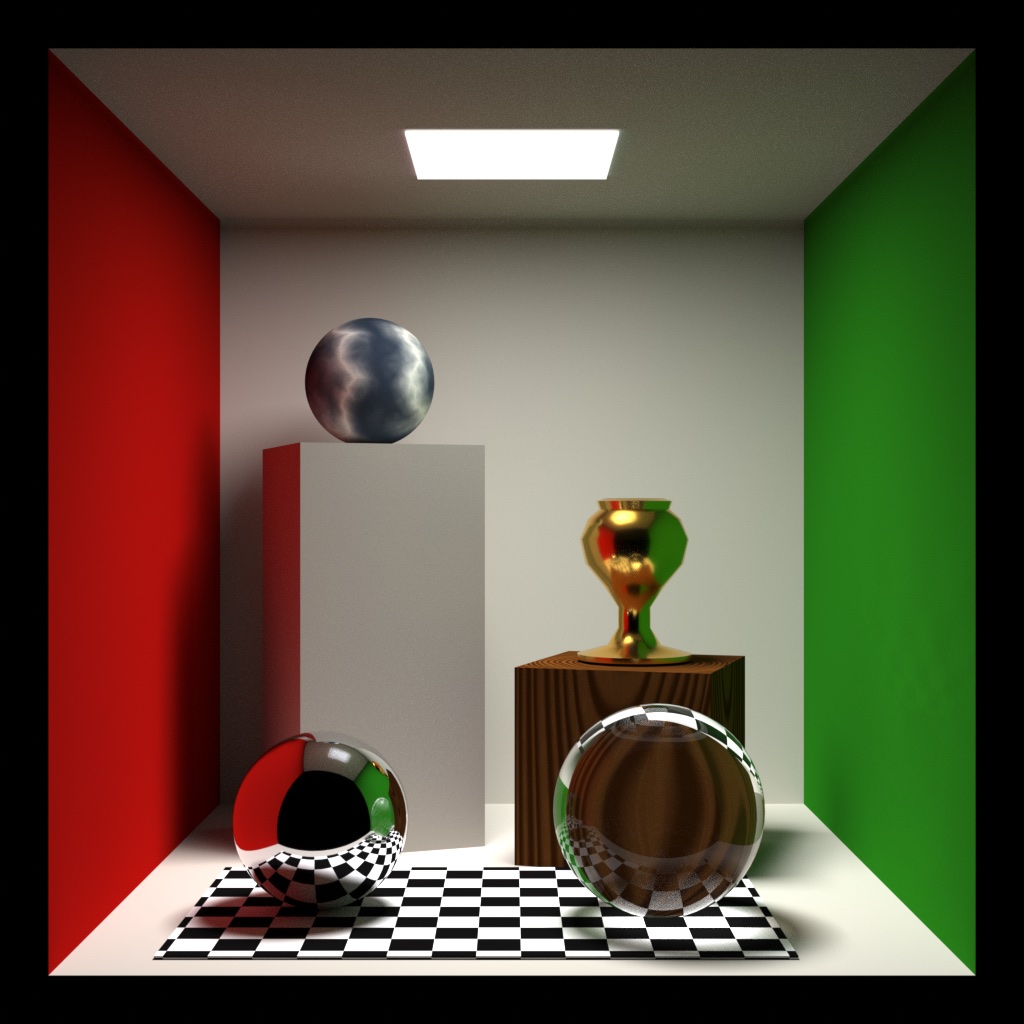
To find out whether this really works, I needed tests. The first one is a classic from the world of computer graphics: the Cornell Box. It is a simple room with one red wall, one green wall and a lamp in the ceiling. It looks easy, but it is a tough test of lighting, because the red and green walls should softly “bleed” colour onto everything near them.
I made it harder (call it the Cornell Box Deluxe) by adding a tall box with a marble ball, a hand-made gold vase on a wooden box, and a chrome ball and a glass ball on a checkerboard rug.
The AI worked in stages and looked at a rendered picture after every one, just as a person would:
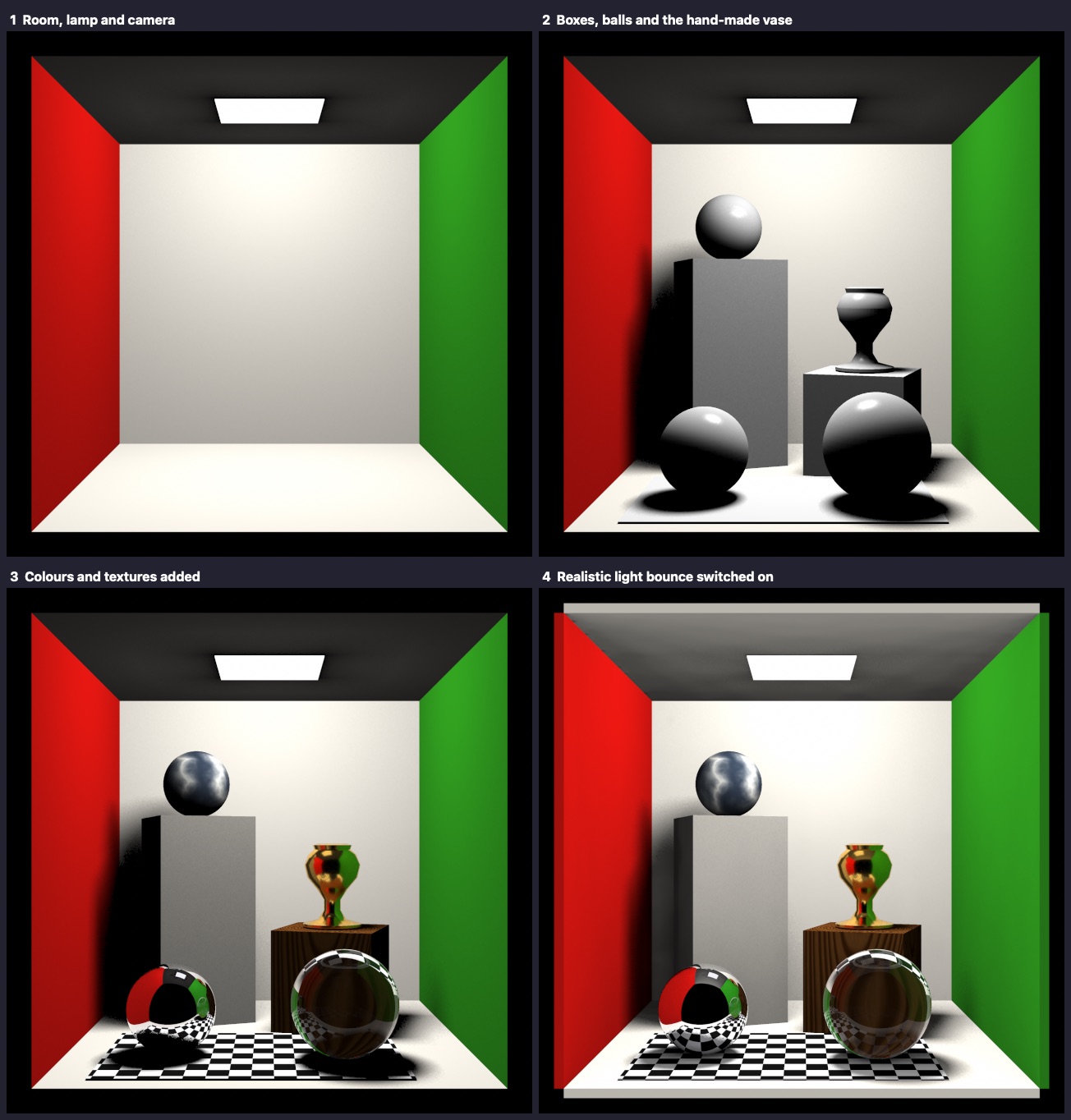
This test also taught me something. The first attempt tilted the boxes the wrong way, because Cheetah3D measures rotation in a way the AI had guessed wrongly. We found it, fixed it, and wrote the lesson into the skills so no AI will make the same mistake again.
Benchmark 2: the Cyberpunk Diorama
The second test is much bigger, and it is my favourite. I came across a video by Muska on YouTube, “GPT-6 Astra vs Claude Opus 5.5 – Cyberpunk Anime-Style 3D Modeling Challenge Timelapse”. In it, two AI models are challenged to recreate a detailed, anime-style cyberpunk Japanese building in Blender, using Blender MCP and a long, carefully written prompt.
Credit where it is due. The challenge, the reference picture and the original prompt come from Muska's video and its accompanying document. I adapted that prompt so it works with Cheetah3D and c3d-mcp (for example, by removing the Blender-only features), and ran it with Claude Opus 5.5. Please go and watch the original video and visit Muska's channel.
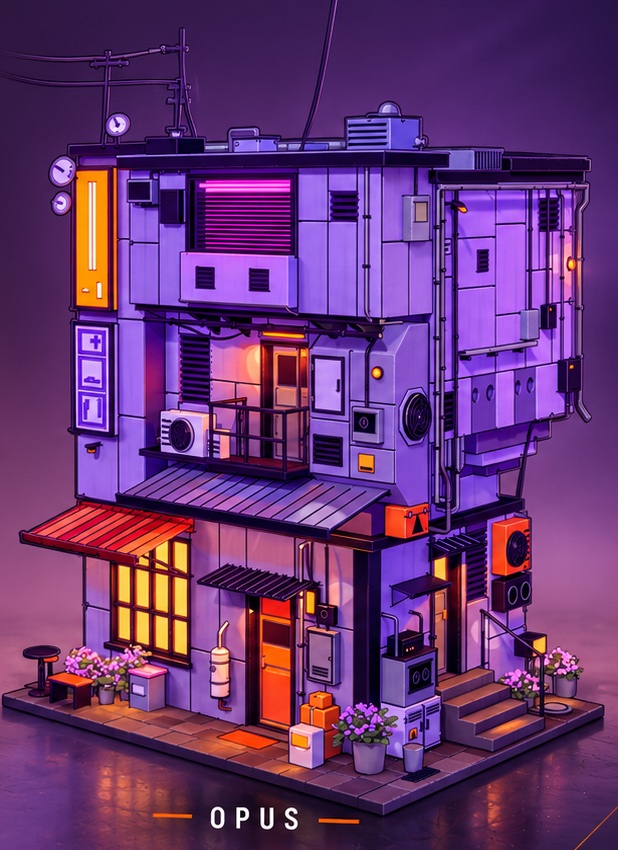
Here is the original reference picture the AIs had to match, and the result the Blender MCP version produced in the video:

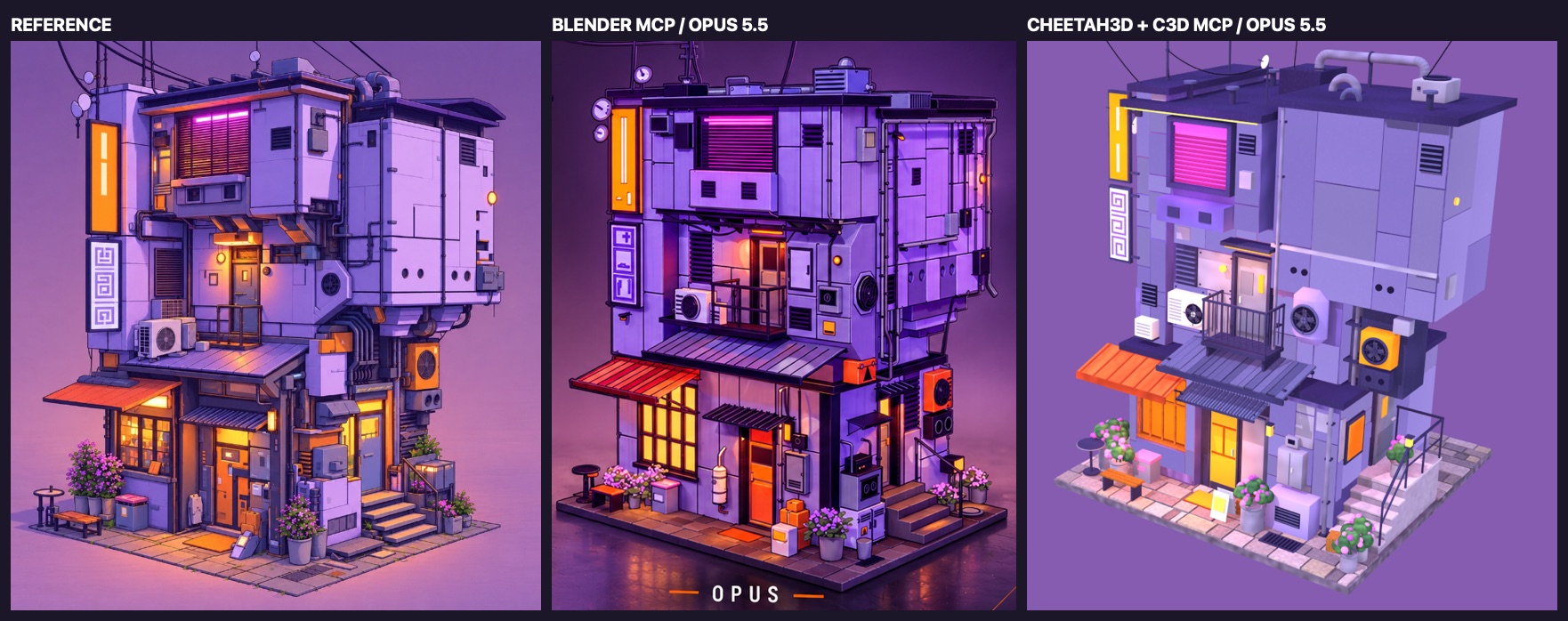
And here are all three together, with what Cheetah3D produced on the right:
How we got there
The AI did not build it in one go. We followed the same steps a human 3D artist would, in eight stages, with a render after each one and a checkpoint saved so we could always go back:
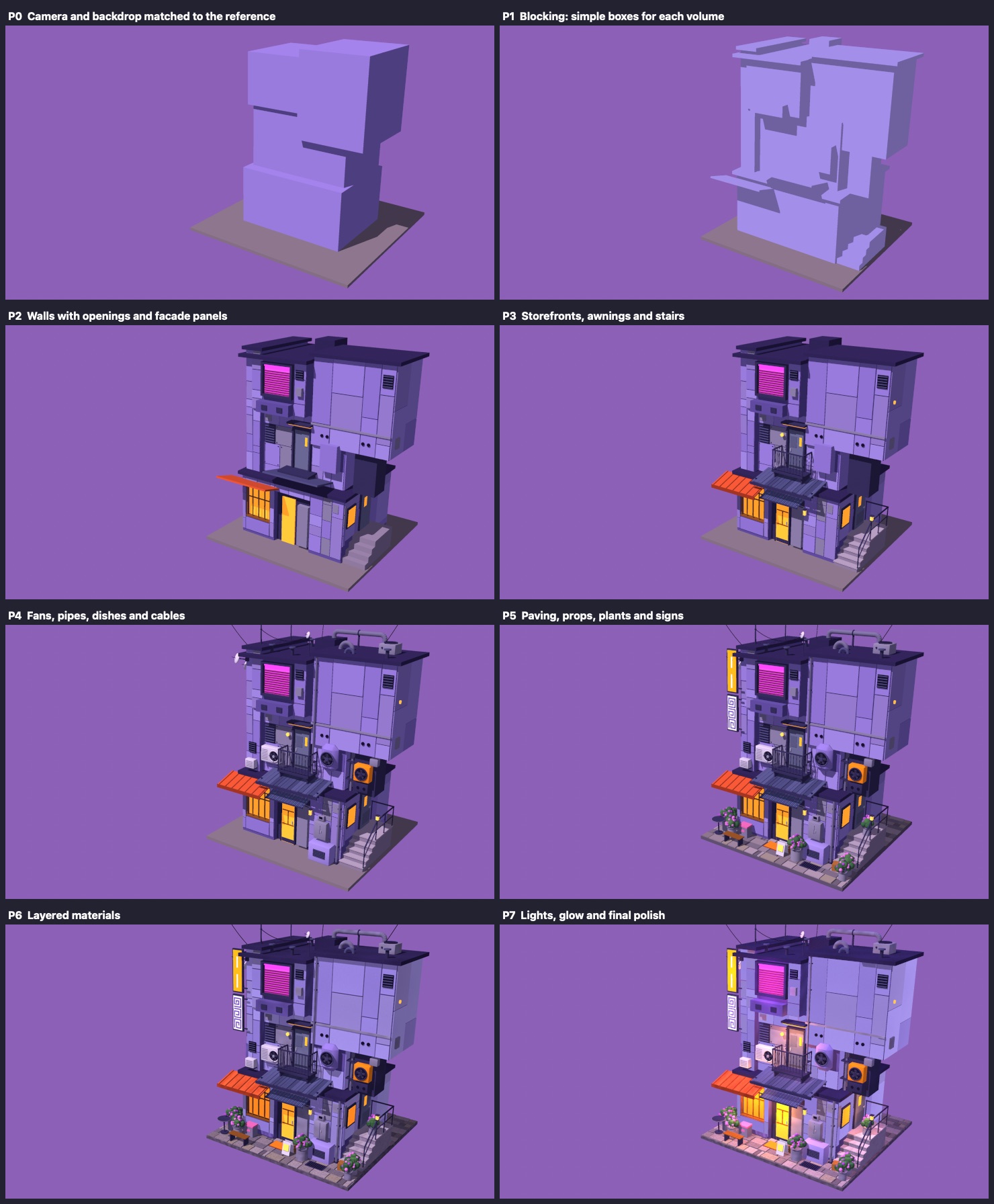
After each stage the AI compared its picture with the reference, listed what was different, and fixed it before moving on. Along the way it made 29 test renders and used well over a hundred of c3d-mcp’s tools. A few moments stood out for me:
- It noticed on its own that an awning sloped the wrong way, and corrected it.
- Cheetah3D crashed once. Because of the automatic checkpoints, the AI picked up from the last saved stage and carried on, and afterwards we traced the crash to one specific action and made c3d-mcp refuse to do it.
- The finished scene has over 1,100 separate objects and 67 materials, and the AI built it in roughly half an hour.
The final result, and how amazed I was
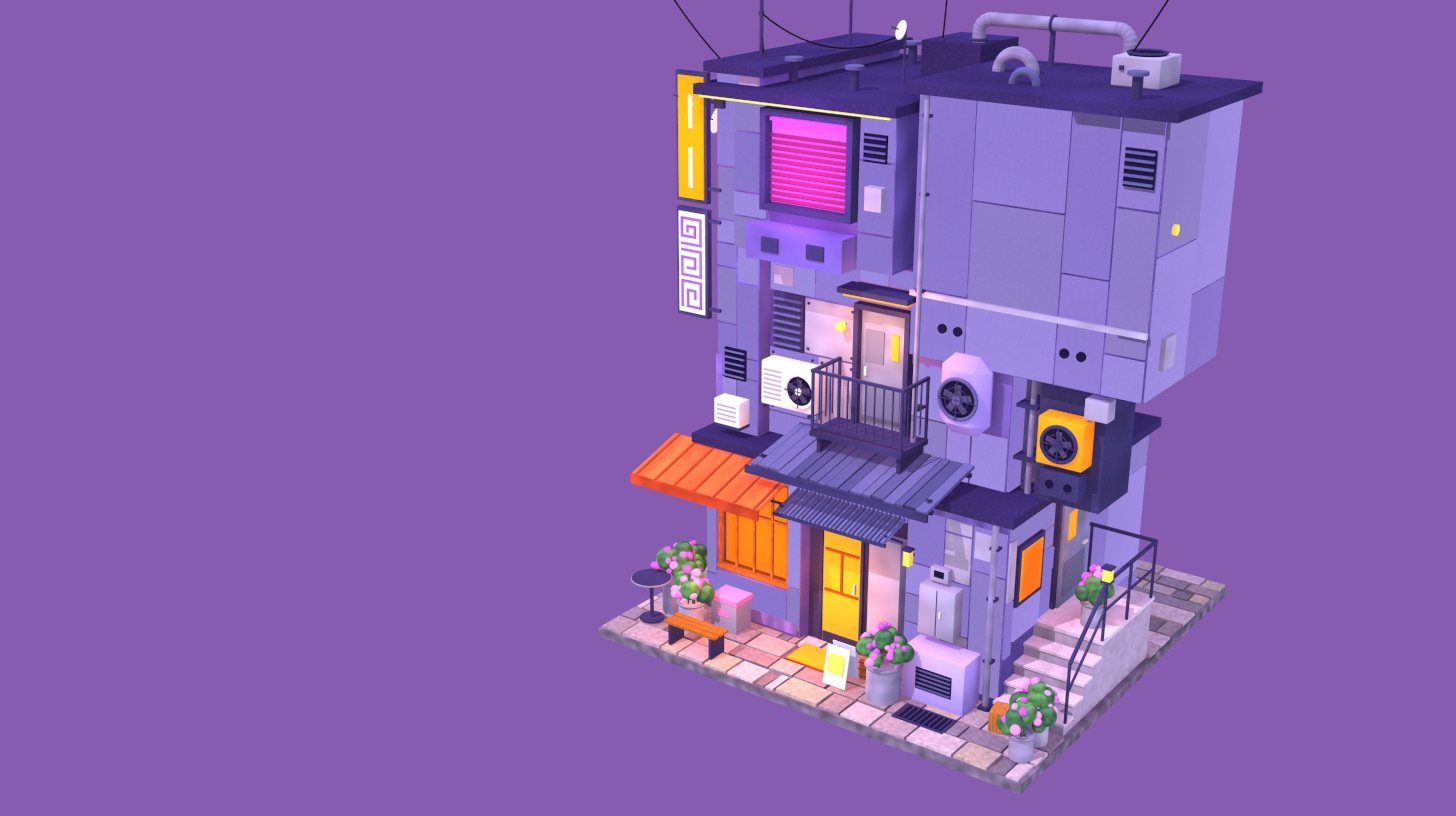
I will be honest: I was blown away. I had pictured an AI placing a few boxes. Instead I watched a recognisable copy of that building appear in my favourite 3D app, with the same shape, the same colours, the same camera angle, the glowing windows, the neon sign, the pipes, the plants and the paving, all from words alone. It is not as polished as the Blender version in the video, which uses painterly shading and glow effects that Cheetah3D does not offer in the same way. But the fact that it works at all, in the app I have loved for years, made my day.
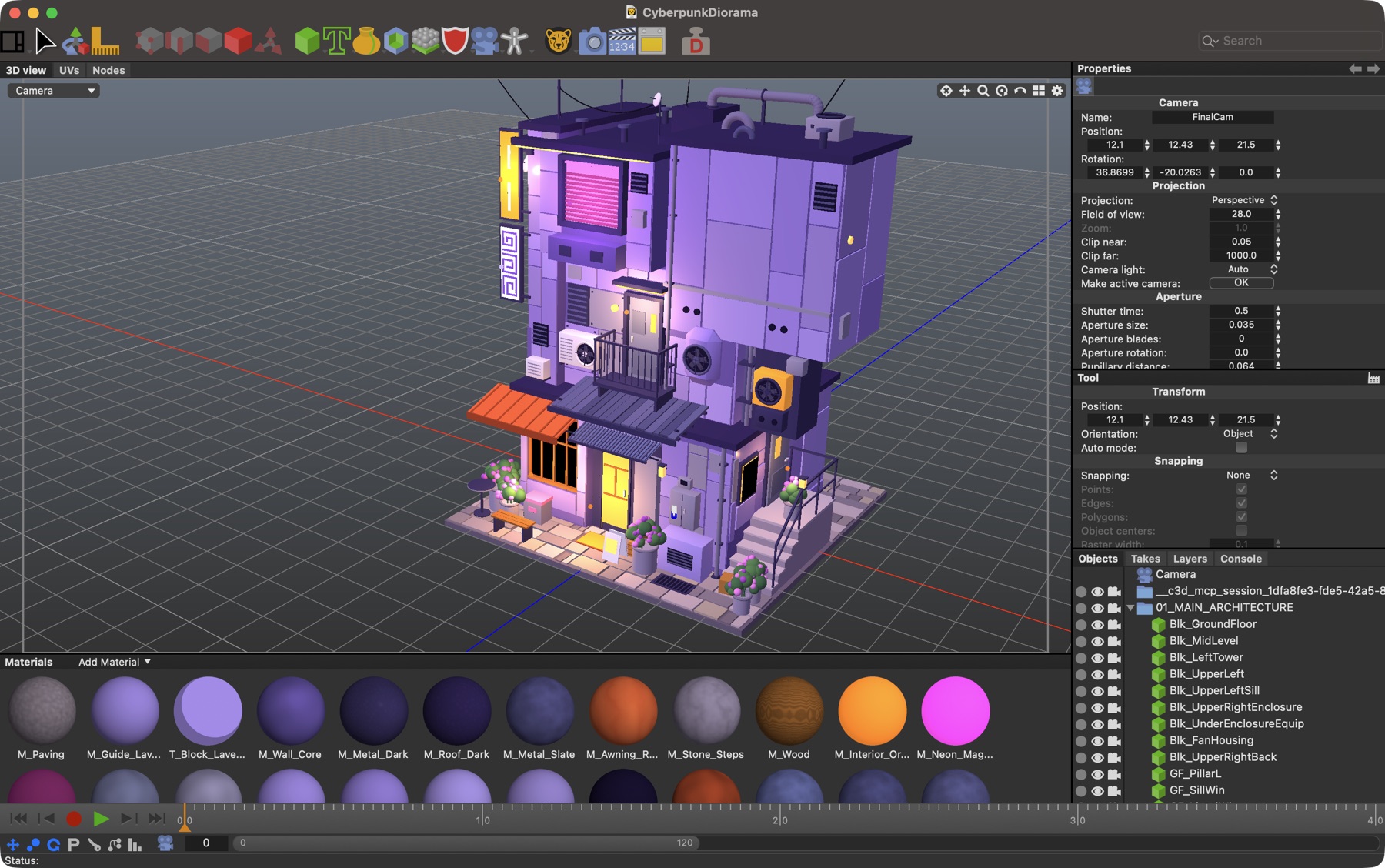
And here is the finished scene opened in Cheetah3D itself, so you can see it really is a normal, editable Cheetah3D document:
Try it yourself
Once everything is set up, here are three prompts to get you started:
- “Create a new Cheetah3D document, build a simple table with four legs and a wood material, light it, and render it.”
- “Look at my current scene and tell me which objects have no material, then give them sensible ones.”
- “Add a three-point lighting setup and render a preview. If it looks too dark, fix it.”
Thank you, and let me know what you think
I hope you find c3d-mcp useful, and that it makes Cheetah3D even more fun for you the way it has for me. This is a young project, and I would love to hear how it goes on your Mac: what worked, what confused you, what you would like it to do next.
- Questions and ideas: start a conversation on GitHub Discussions, or leave a comment below (you will need a free GitHub account, which keeps spam away).
- Found a bug? Please open an issue.
Credits
- Cheetah3D is created by Martin Wengenmayer, an independent developer who has been building and refining it since the early 2000s. Thank you, Martin, for making such an amazing app: friendly, fast, and a joy to use. I sincerely hope Cheetah3D will continue to be supported, developed and improved well into the future. If you use and love it too, please support it by buying a licence from the official Cheetah3D website.
- Muska, for the video and challenge that inspired the Cyberpunk Diorama test, and for the reference image and prompt it was based on.
- Tonio Loewald, whose c3d-scripting-kb (the Cheetah3D API reference, example scripts, linter rules and forum-derived gotchas, collected from the posts of the Cheetah3D forum community) and online book Learn 3D with Cheetah 3D taught c3d-mcp a lot: it uses them for its documentation search, script linting and agent skills. Everything I took from them was tested against Cheetah3D 8.1.3 first, and where the app behaved differently, the correction is mine, not theirs. Thank you!
- The AI assistants used to build and test this project, and the open Model Context Protocol that makes it all possible.
c3d-mcp is an independent, community project. It is not made by, affiliated with or endorsed by the makers of Cheetah3D.